
How can we help you manage your gym?
Explore step-by-step guides on attendance tracking, WhatsApp membership reminders, staff roles, billing, and system settings.
How to Set Up Reception QR Scanner for Instant Check-In
ApexGymOS supports multiple attendance methods, including manual check-in, QR-based attendance, and biometric attendance. QR-based attendance can be used at the gym reception to make member check-ins quick and convenient. ApexGym OS Guide
This guide explains the basic setup for using QR-based attendance at your gym reception.
1. Open the Attendance Section
Log in to your ApexGymOS account and open the Attendance section.
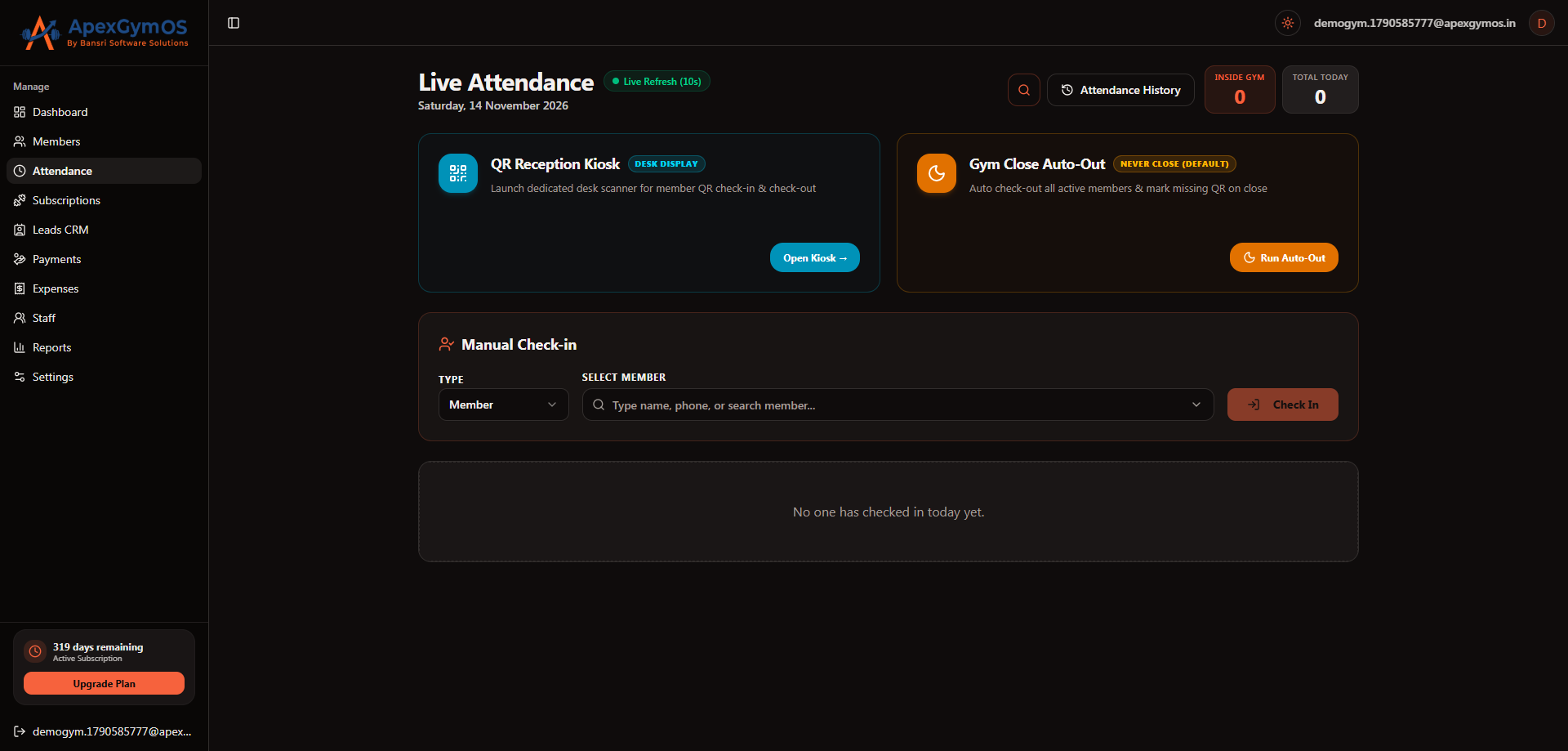
The Attendance section is where you manage member check-in and attendance activity.
2. Select the QR Attendance Setup
ApexGymOS supports QR-based attendance as one of its available attendance methods.
Open the appropriate QR attendance setup from the Attendance section.
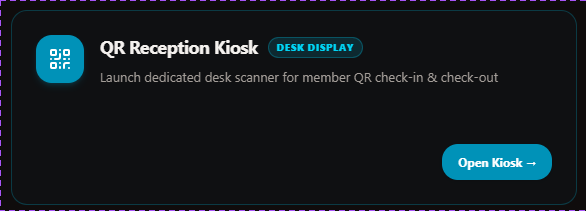
If your gym uses QR attendance at reception, configure the required QR setup before allowing members to check in. ApexGym OS Guide
3. Configure the Reception QR Setup
Complete the available QR configuration required for your reception check-in process.
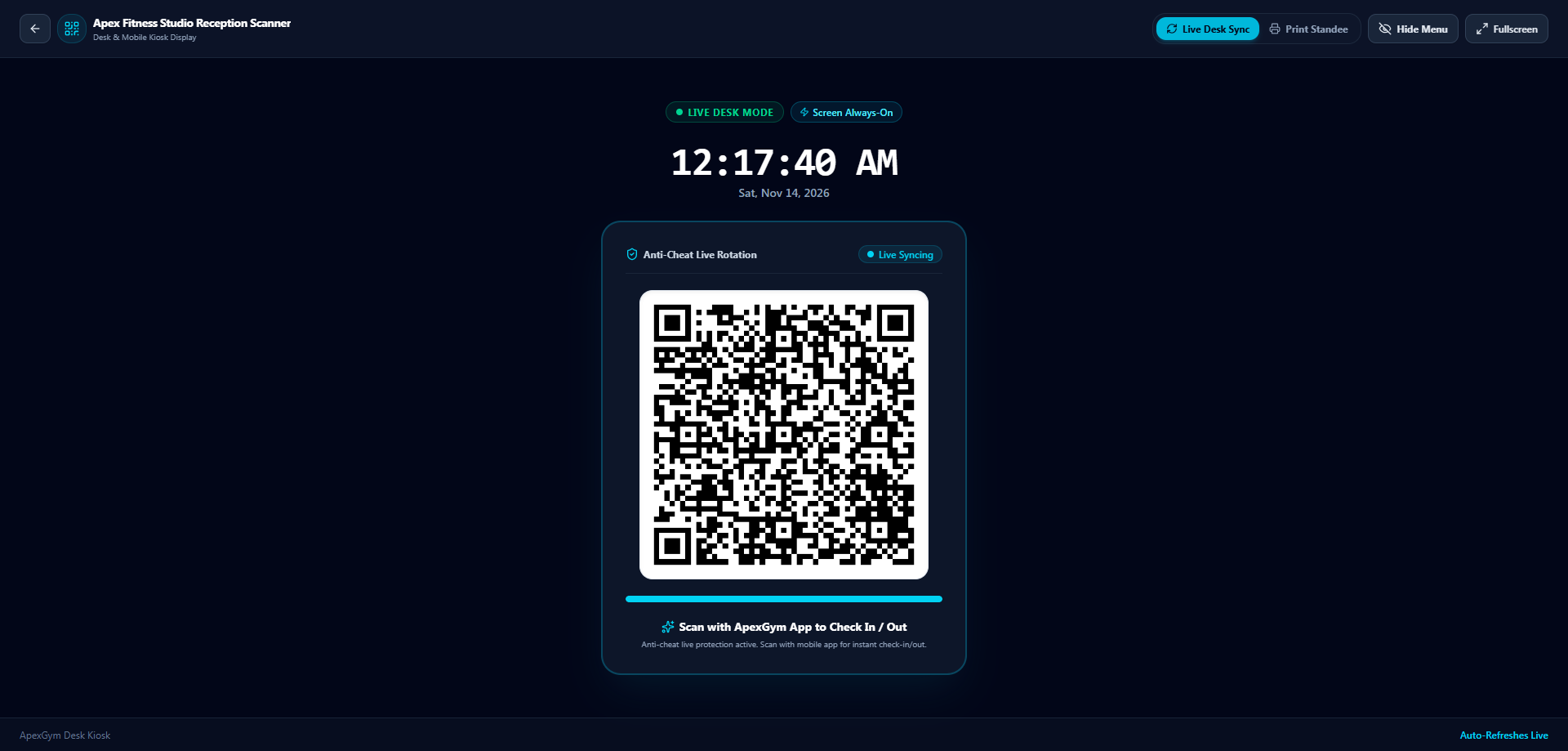
Make sure the QR setup is properly configured before starting member check-ins.
Note: The provided ApexGymOS documentation confirms that QR-based attendance is supported and that the appropriate QR setup should be configured. It does not specify the exact QR scanner configuration fields or button names, so those details should match the actual ApexGymOS interface.
4. Prepare the Scanner at Reception
Once the QR setup is configured, keep the QR scanner or QR check-in setup ready at the gym reception.
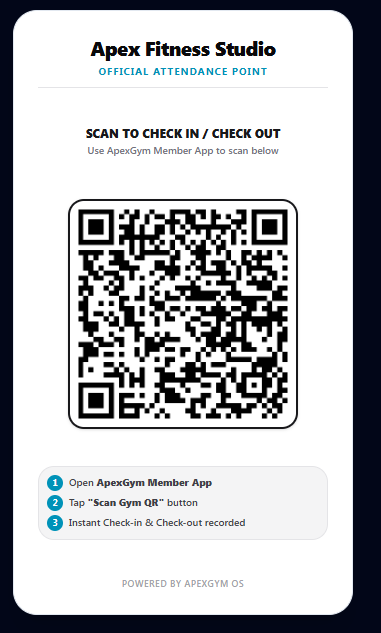
Position the scanner where members can easily access it when they arrive at the gym.
5. Allow Members to Check In
Members can use the configured QR attendance setup at reception to complete their check-in.

The QR-based attendance workflow allows the gym to record member attendance without requiring every check-in to be entered manually.
6. Check Attendance Records
After members start using the QR check-in process, open the Attendance section to review attendance activity.
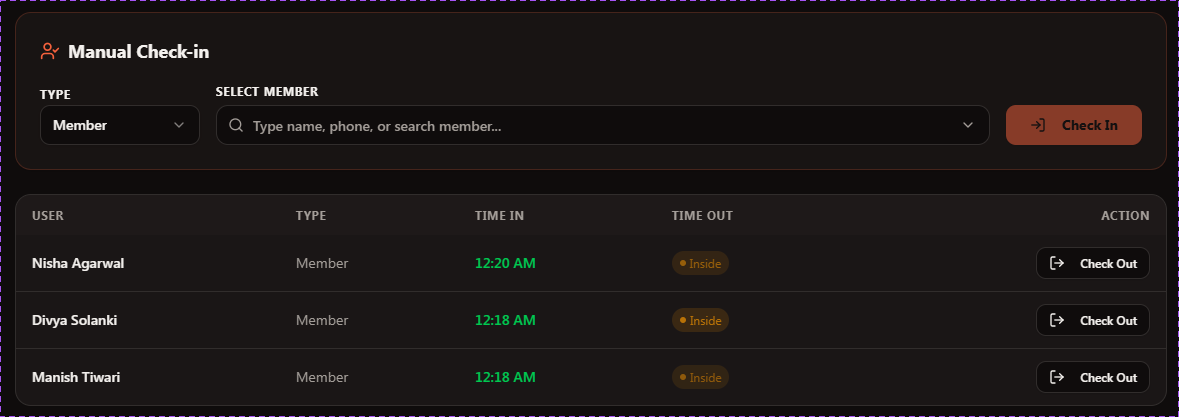
Use the attendance records to keep track of member check-ins and daily attendance.
Other Attendance Methods
If QR attendance is not suitable for your gym, ApexGymOS also supports:
- Manual Check-In
- QR-Based Attendance
- Biometric Attendance
For supported biometric hardware, ApexGymOS also provides hardware settings for device configuration and automatic attendance synchronization. ApexGym OS Guide
QR Attendance Setup Checklist
Before starting QR check-in at your reception, make sure:
- Your ApexGymOS account is configured
- Your members are registered
- QR-based attendance is configured
- The reception QR setup is ready
- Members know where to check in
- Attendance records are being recorded correctly
Summary
With ApexGymOS, you can use QR-based attendance at your gym reception to make member check-ins easier and more convenient. Configure the appropriate QR setup first, then keep the check-in setup ready at reception for daily use.
Was this guide helpful?
Help us improve ApexGymOS documentation.